How to Set Up RetroArch for SNES on Windows
A practical beginner's guide to installing RetroArch on Windows, loading the Snes9x core, and getting SNES games running in minutes.
RetroArch is a powerful all-in-one emulation frontend that lets you play games from dozens of classic systems. This guide walks you through setting it up specifically for SNES games on Windows.
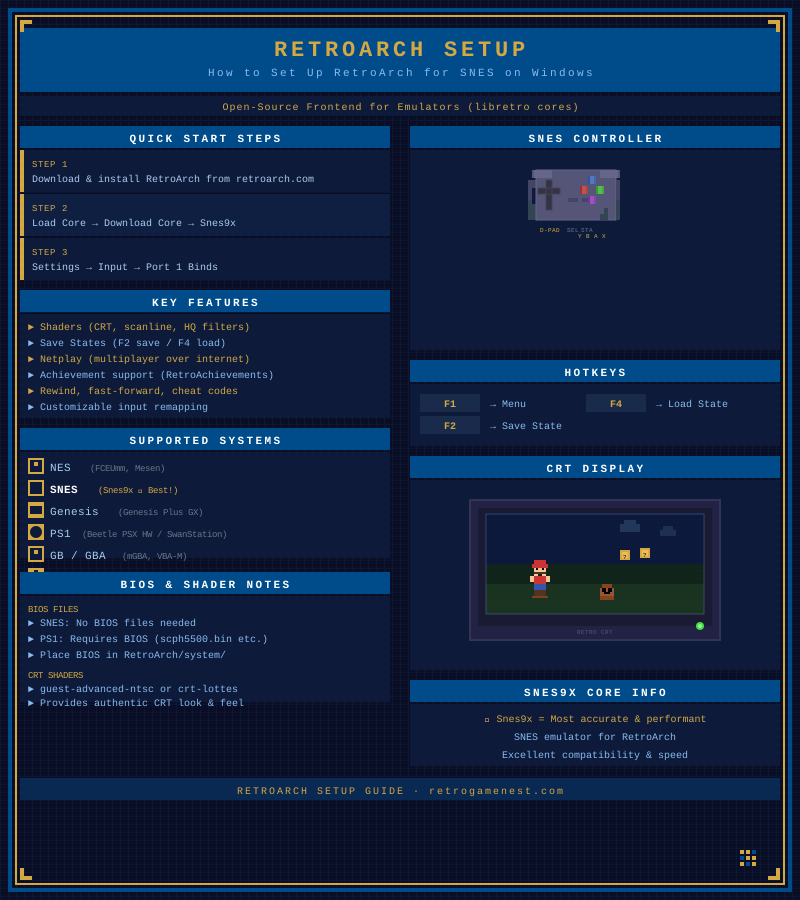 RetroArch setup pixel art infographic — installation steps, Snes9x core, controller config, CRT shaders, and hotkeys
What You Need
- A Windows PC (Windows 10 or 11 recommended)
- RetroArch downloaded from retroarch.com
- SNES ROM files (only use ROMs you own legally)
Step 1 — Download and Install RetroArch
Head to retroarch.com and download the latest Windows installer. Run the installer and follow the prompts. The default install directory is fine.
Once installed, launch RetroArch. You’ll see the main menu (XMB or Ozone depending on your version).
Step 2 — Download the Snes9x Core
RetroArch uses “cores” — each core is an emulator for a specific system. For SNES, the recommended starting core is Snes9x.
- In the RetroArch menu, go to Main Menu → Load Core → Download a Core.
- Scroll down to Nintendo - SNES / SFC and select Snes9x.
- Wait for the download to finish.
If online core download is disabled, you can download cores manually from the Libretro buildbot and place them in the cores folder inside your RetroArch directory.
 The SNES layout — A, B, X, Y face buttons plus L/R shoulder buttons — is what you will be mapping in RetroArch’s input configuration. Photo: Kamil Switalski / Unsplash (Unsplash License)
Step 3 — Configure Your Input
Before loading a game, set up your controller or keyboard.
- Go to Settings → Input → Port 1 Controls.
- Map each SNES button to your keyboard key or gamepad button.
- A USB SNES-style controller or any generic gamepad works well.
Common keyboard default mappings: arrow keys for D-Pad, Z/X for B/A, A/S for Y/X, Enter for Start, Backspace for Select.
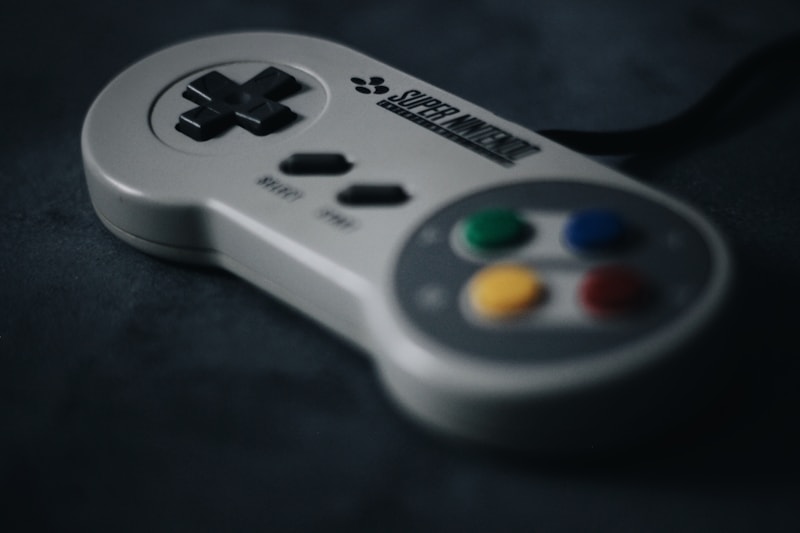
 A USB gamepad that matches the original SNES controller layout will give you the most natural experience. Any generic USB controller works — RetroArch’s input remapping handles the rest. Photo: Lorenzo Herrera / Unsplash (Unsplash License)
Step 4 — Load a Game
- Go to Main Menu → Load Content.
- Navigate to the folder where your SNES ROM files are stored.
- Select a
.sfcor.smcfile. - RetroArch will ask which core to use — select Snes9x.
The game will launch. Press F1 at any time to bring up the RetroArch quick menu during gameplay.
Step 5 — Save States and Other Features
RetroArch’s quick menu (F1 during gameplay) gives you access to:
- Save State / Load State — instantly save and restore game progress at any point
- Core Options — adjust video, audio, and emulation settings for the Snes9x core
- Cheats — load cheat codes if needed
- Take Screenshot — captures to your Screenshots folder
Tips for Best Experience
- Enable integer scaling in Settings → Video for a crisp, pixel-perfect image.
- Try Shader Presets for optional CRT scanline effects under Quick Menu → Shaders.
- Set up a playlist by scanning your ROM folder under Import Content so your library appears in RetroArch’s menu.
 RetroArch’s CRT scanline shaders recreate the look of playing on a period-accurate monitor — the slight blurring and scan lines that original SNES games were designed to display on. Photo: Federica Galli / Unsplash (Unsplash License)
That’s all it takes. Once configured, RetroArch is one of the most versatile emulation setups available, and the same frontend works for dozens of other classic systems too.
Frequently Asked Questions
- Do I need a powerful PC to run SNES games in RetroArch?
- No. SNES emulation is extremely lightweight. Even a basic laptop from the last 15 years can run SNES games at full speed in RetroArch with zero issues.
- Is RetroArch free?
- Yes. RetroArch is completely free and open source. You can download it from the official website at retroarch.com.
- Where do I get SNES ROMs?
- Only use ROMs of games you legally own. You can dump ROMs from your own cartridges using a compatible cartridge reader.
- Which SNES core should I use in RetroArch?
- Snes9x is the best general-purpose SNES core for most games. For higher accuracy on a few demanding titles, try bsnes or bsnes-hd.